1. Apple Silicon compatibility check (M1, M2, M3, M4)?
This build is natively compiled for Apple Silicon processors. Click the Apple menu > About This Mac to verify that your chip is Apple M1, M2, M3, or M4.
2. Running directly from the mounted installer window?
Always drag AutoVideo into your Applications folder before launching. Running directly from the temporary installer window can prevent preferences and models from saving properly.
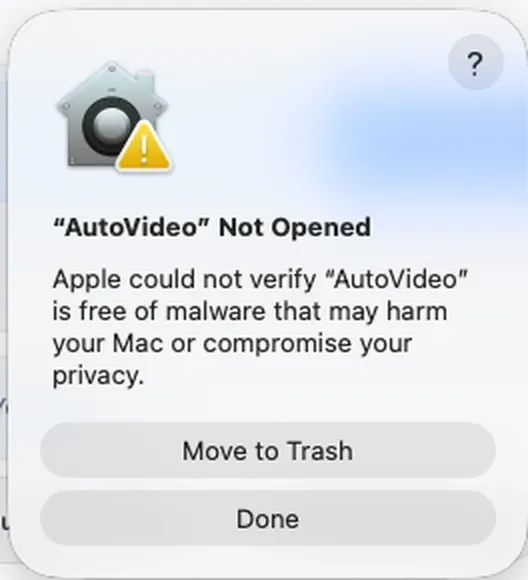
3. macOS Gatekeeper prompt: "cannot be opened because Apple cannot check it for malicious software"?
Open System Settings > Privacy & Security, scroll down to the Security section, and click "Open Anyway".
Advanced note for developers: You can also open Terminal and run xattr -cr /Applications/AutoVideo.app to clear the quarantine flag immediately.
4. Installer package reports "Image corrupted" or "No mountable file systems"?
The download was interrupted before completing. Delete the partial file, check your network connection, and download the full installer again.
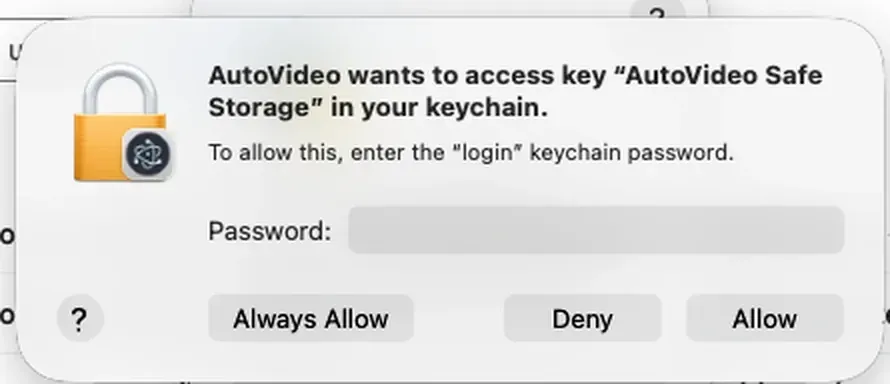
5. Repeated keychain prompts when the application starts?
When the system dialog appears, enter your Mac user account password and make sure to select "Always Allow" (not just "Allow") so macOS remembers the authorization permanently.
6. Safe upgrade to a newer release?
Quit AutoVideo, download the new installer package, open it, and drag the new app into Applications. Choose "Replace" when Finder asks. Your project database and channel connections remain untouched.